Unlock Your Samsung J6 Plus: A Step-by-Step Guide to Bypassing FRP on Android 10
Bypassing the Factory Reset Protection (FRP) on your Samsung J6 Plus running on Android 10 can be a daunting task, but with the right guidance, it's achievable. This article will walk you through a simple and straightforward process to help you regain access to your device. Whether you're a tech-savvy individual or a beginner, this guide is designed to cater to all levels of expertise.
The Samsung J6 Plus, a mid-range smartphone, has gained popularity among users due to its impressive features and affordability. However, the FRP feature, introduced by Google, can sometimes become a hindrance when you need to reset your device. The FRP is designed to prevent unauthorized access to your device after a factory reset, but it can also lock you out of your own device if you forget your Google account credentials. In this article, we'll explore the reasons behind FRP, its implications, and a step-by-step guide on how to bypass it on your Samsung J6 Plus running on Android 10.
Understanding FRP and Its Implications
The Factory Reset Protection (FRP) is a security feature introduced by Google to prevent unauthorized access to a device after a factory reset. When you set up a Google account on your device, the FRP is activated, and it requires you to enter the associated Google account credentials to access the device after a factory reset. This feature is designed to prevent thieves from accessing your device and stealing your personal data.
However, in some cases, FRP can become a problem when you forget your Google account credentials or if you're selling your device and the new owner can't access it due to the FRP lock. In such situations, bypassing the FRP becomes essential to regain access to your device.
Why Bypass FRP on Samsung J6 Plus?
Bypassing FRP on your Samsung J6 Plus running on Android 10 can be necessary in various situations:
* You've forgotten your Google account credentials and can't access your device.
* You're selling your device and the new owner can't access it due to the FRP lock.
* You want to reset your device to its factory settings without losing your Google account credentials.
Preparation and Requirements
Before attempting to bypass FRP on your Samsung J6 Plus, ensure you have the following:
* A computer with a stable internet connection
* A USB cable for connecting your device to the computer
* A compatible USB driver for your device
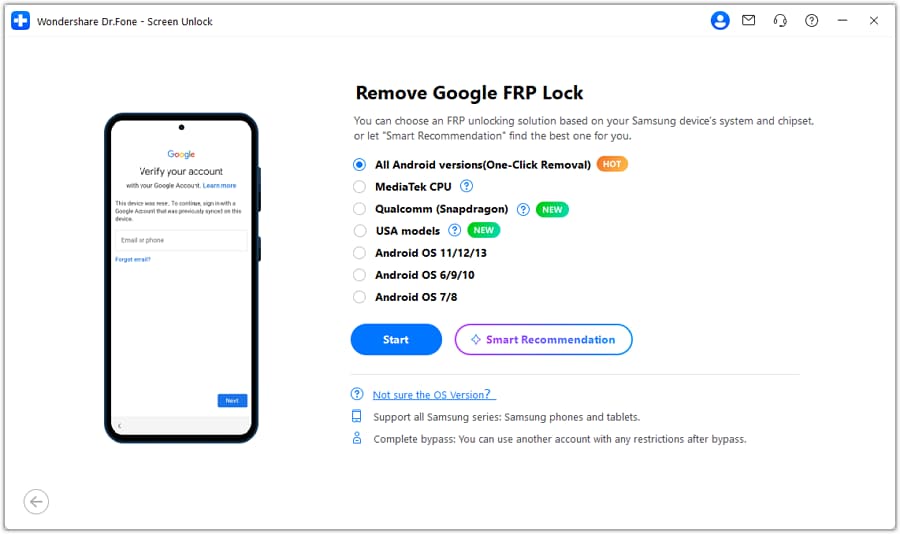
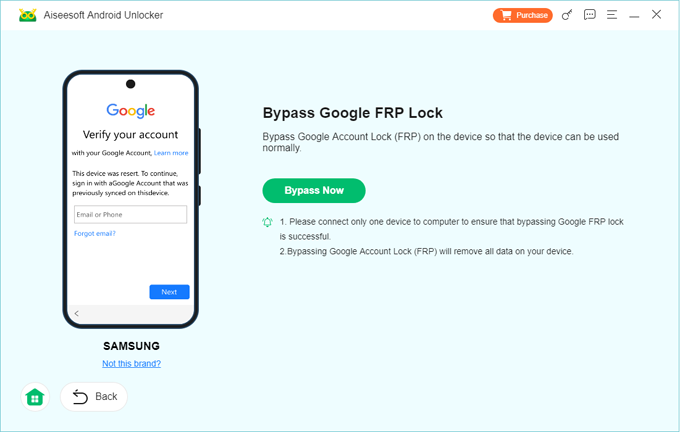
* A compatible FRP bypass tool (e.g., Odin, Samsung FRP Tool, or FRP Bypass Tool)
Step-by-Step Guide to Bypass FRP on Samsung J6 Plus
Here's a step-by-step guide to bypass FRP on your Samsung J6 Plus running on Android 10:
1.
Step 1: Enable USB Debugging
Enable USB debugging on your device by going to Settings > Developer options > USB debugging. This will allow your device to communicate with your computer.
2.
Step 2: Connect Your Device to the Computer
Connect your device to the computer using a USB cable. Ensure the USB driver is installed on your computer to establish a stable connection.
3.
Step 3: Download and Install the FRP Bypass Tool
Download and install the compatible FRP bypass tool on your computer. Follow the installation instructions provided with the tool.
4.
Step 4: Launch the FRP Bypass Tool
Launch the FRP bypass tool on your computer and follow the on-screen instructions to select your device model and FRP version.
5.
Step 5: Boot Your Device in Download Mode
Boot your device in download mode by pressing and holding the Volume down button, the Bixby button, and the Power button simultaneously. Release the Power button when the Samsung logo appears, and then press the Volume up button to enter download mode.
6.
Step 6: Connect Your Device to the Computer
Connect your device to the computer using a USB cable. The FRP bypass tool should detect your device and begin the bypass process.
7.
Step 7: Follow the On-Screen Instructions
Follow the on-screen instructions provided by the FRP bypass tool to complete the bypass process. This may involve selecting your language, country, and other settings.
8.
Step 8: Wait for the Bypass Process to Complete
Wait for the bypass process to complete. This may take a few minutes, depending on your device and the FRP bypass tool.
9.
Step 9: Set Up Your Device
Once the bypass process is complete, set up your device as you normally would. You should now be able to access your device without the FRP lock.
Conclusion
Bypassing FRP on your Samsung J6 Plus running on Android 10 can be a straightforward process if you follow the correct steps. By understanding the implications of FRP and preparing the necessary tools and requirements, you can regain access to your device. Remember to exercise caution when attempting to bypass FRP, as incorrect steps can result in device damage or data loss. If you're unsure about any step, consider seeking professional help or consulting the manufacturer's documentation.